This POC, a consequential POC of face-api.js, regonize the face from camera and find the nearest avatar from thousands avatars generated from avatar generators.
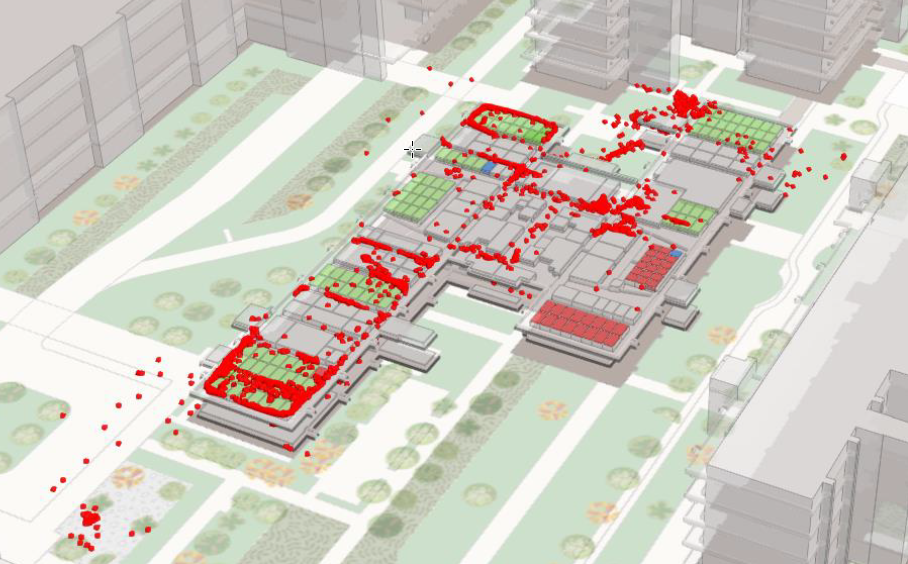
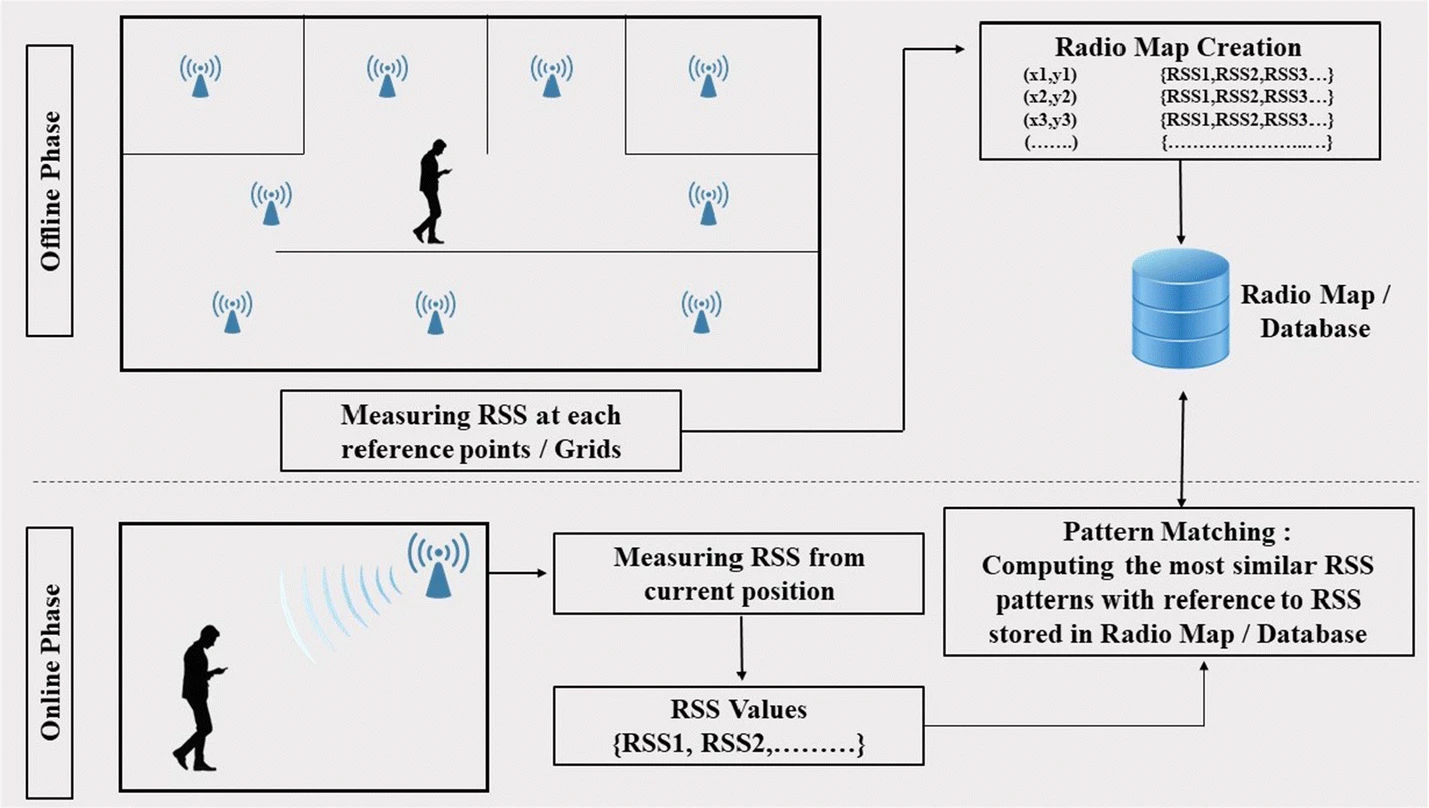
This is still a very early stage of POC. With a pre-defined datasets, with many WIFI APP signal strengths data try to prdict the real location of the indoor room.
This might be the first POC try to define our input and output data formats.
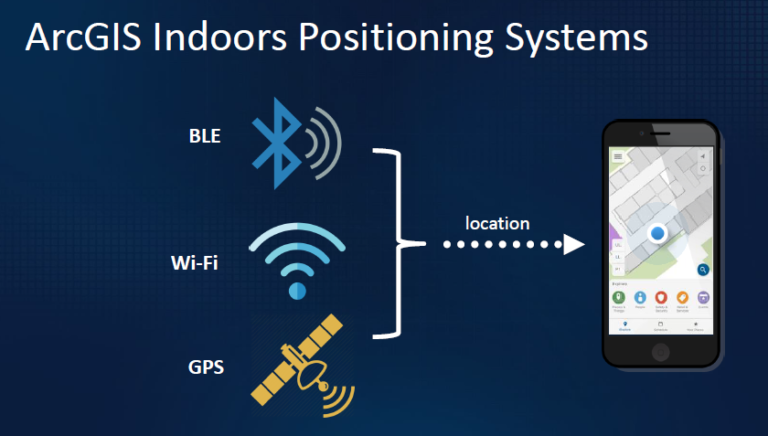
Also, this POC also be a high level connector of several different components together since it will leaverage multi factor information to conclude a precise indoor locationing.
When it comes to localization within buildings, a distinction can be made between client-based (Active tracking) and server-based positioning ( Passive tracking + Active tracking as optional). Client-based localization enables determining the position directly on the end user's device (e. g. smartphone). In the case of server-based localization, positioning takes place on a server.
SOD (Salient Object Detection) is a topics in deep learning that by given a image, SOD can automatically segmentize the most interested objects of the image without any hints. SOD learns how human see the interested objects by detecting the denisity of feature points and segmentize the most dense parts. So far, U2Net provide a state of art performance.
These are the first results of the U2Net on target benchmark images. For the full results can be checked in Chimay-SOD1 and asubset Chimay-SOD2 can be found.
{% include ideal-image-slider/slider.html selector="slider1" %}
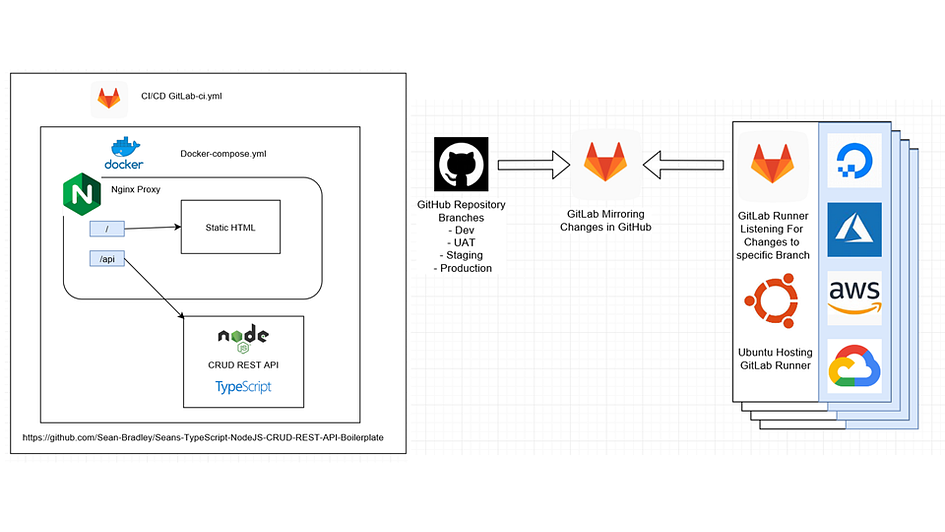
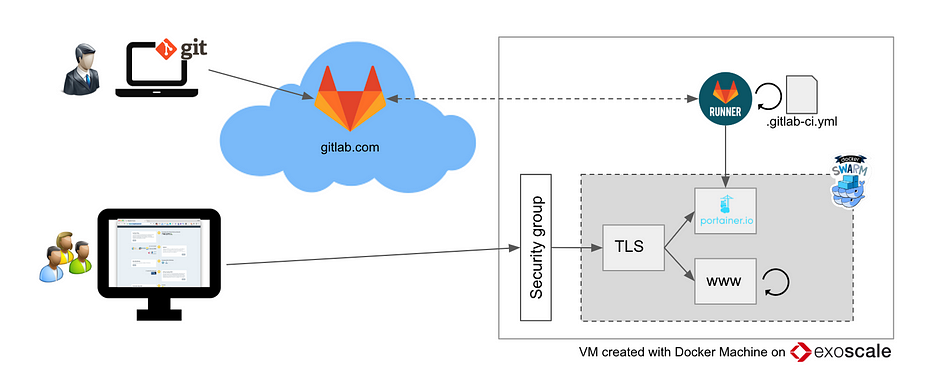
You will need to import your project for gitlab CI/CD only by add your project into https://tailab.dlc.com:9443/root/git-sync-mirror. After that, bitbucket code will be automatically syced to gitlab server.
PS: YOUR-TOKEN can be obtained from Gitlab Server, in top menu, Admin Area->Runners to get the registration token. If you have no idea how to get '/etc/gitlab-runner/certs/ssl.csr', please check step XX.
<style>
.responsive-wrap iframe{ max-width: 100%;}
</style>
<div class="responsive-wrap">
<!-- this is the embed code provided by MS -->
<iframe src="https://barcozone-my.sharepoint.com/personal/wj_lee_barco_com/_layouts/15/Doc.aspx?sourcedoc={565a0ed9-b548-42ad-9bcf-0c86c621c369}&action=embedview&wdAr=1.7777777777777777" width="1024px" height="768px" frameborder="0">This is an embedded <a target="_blank" href="https://office.com">Microsoft Office</a> presentation, powered by <a target="_blank" href="https://office.com/webapps">Office</a>.</iframe>
<!-- MS embed ends -->
</div>
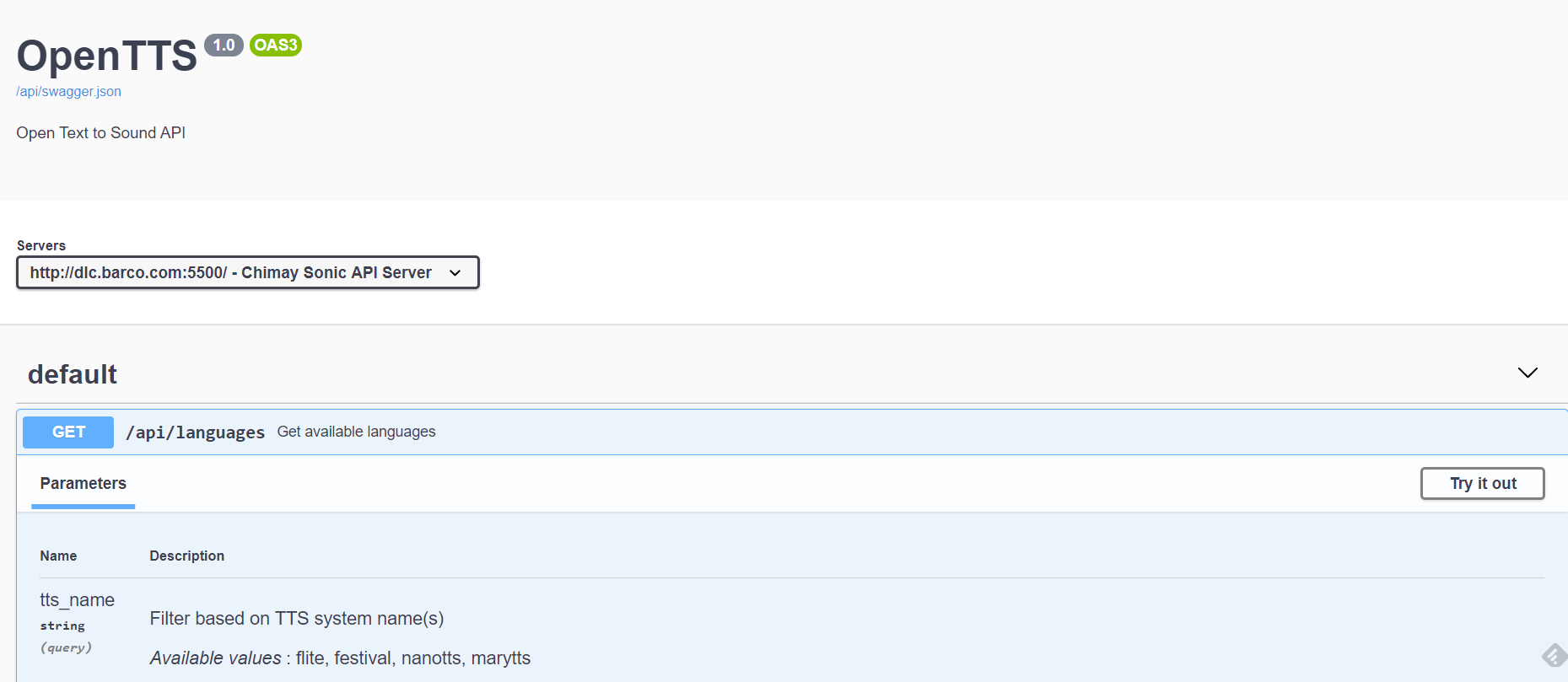
Based on last time keyword spotting topics on Chimay, I even mention items about TTS (text-to-speech) and showed POCs. Here I adopt Opentts to create a API server for speech and later ultrasound generation from Web.
In live opentts demo site, you can check the conventional (non-deep learning) speech synthesis (marytts, nanotts) and deep-learning ones (Mozillatts with Tacotron and Tacotron2). Deep-learing ones provide a beeter speech quality. A public MOS test results as below also show similar conclusions.
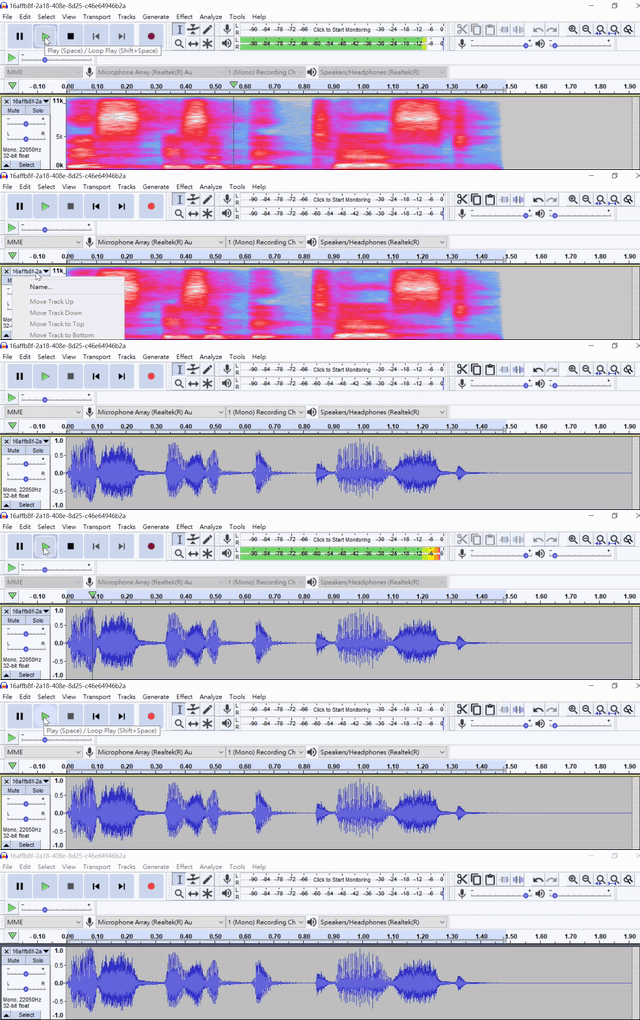
Demo wave file as
Swagger API also includes the following:
The following diagram is from mozzila project. It shows the whole picture of nature lanaugege iteration with end users. But, of course, it will be a long way to go.